GMWSS customers pay their bills online through InvoiceCloud. Make a quick one-time payment with no account needed, or register to set up AutoPay, go paperless and see your payment history in one place.
- Free to use
- No transaction fees
- Card, e-check, PayPal, Venmo, Apple Pay or Google Pay
What do you want to do?
Create your accountFirst time? Start here.
Have your account number and service address handy.
- Go to invoicecloud.com/georgetownky and click Register Now.
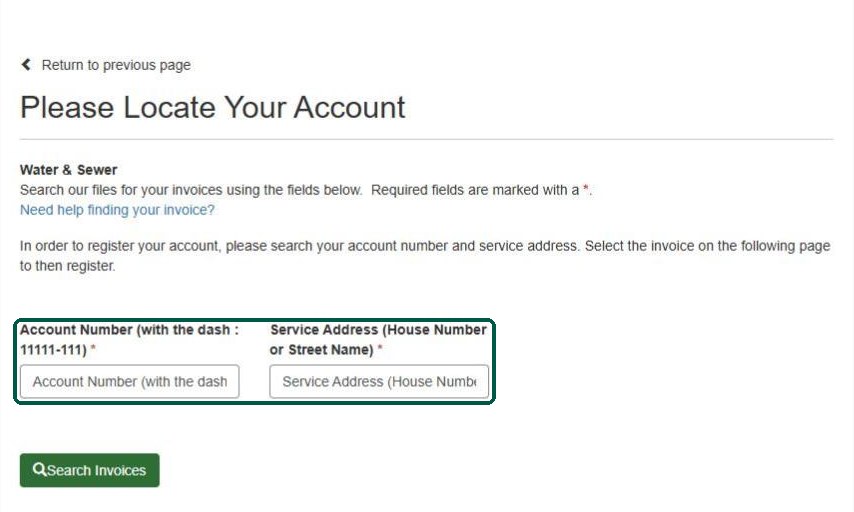
- Enter your account number with the dash (example: 11111-111) and your house number or street name.
- Click Search Invoices, check the box next to your bill, then click the register button.
- Enter your email address and a password (each twice), then click Complete Registration.
Pay your billMake a one-time payment.
No account needed. Go to invoicecloud.com/georgetownky and click Pay Now to use One Time Pay. Already registered? Sign in and click Pay My Invoices.
- Search with your account number and service address, check the box next to your bill and click Add Selected Invoices. (Signed in? Just select your bill.)
- Click Proceed to Payment and choose a credit or debit card, e-check, PayPal, Venmo, Apple Pay or Google Pay.
- Agree to the terms and submit your payment. Your receipt is emailed to you.
You can also pay by phone 24/7 with our automated line at (502) 863-7816.
Set up AutoPayPay automatically on each due date.
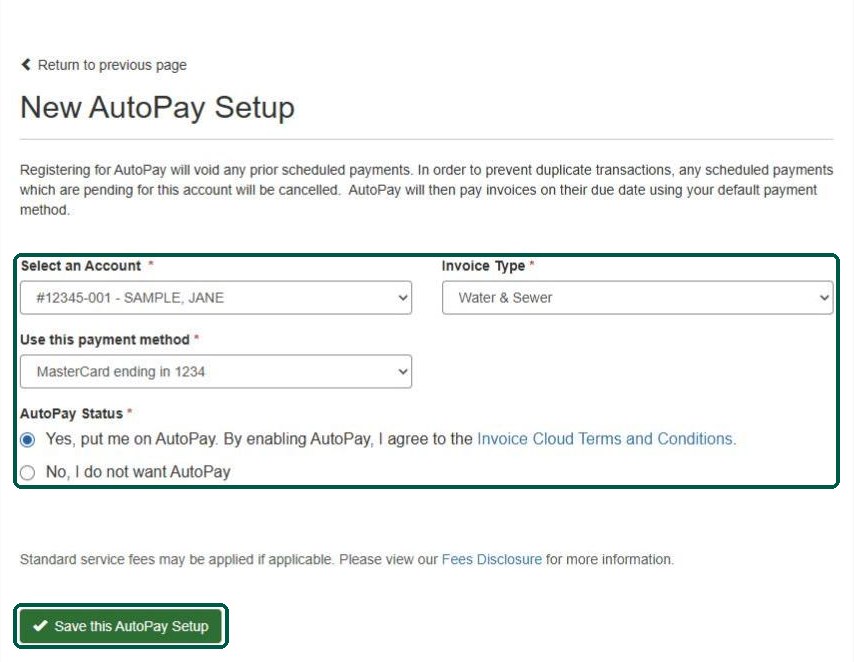
- Go to My Profile > AutoPay.
- Click New AutoPay Setup.
- Pick your account and payment method.
- Choose Yes, put me on AutoPay and click Save.
To change or stop it, click Edit next to your account on the AutoPay page.
Want to pick your own day or amount?
Use My Profile > Recurring Scheduled Payments instead. You can pay in full or a fixed amount, on your due date or a day you choose.
Go paperlessGet your bill by email.
Instead of a paper bill in the mail, you will get an email when your new bill is ready.
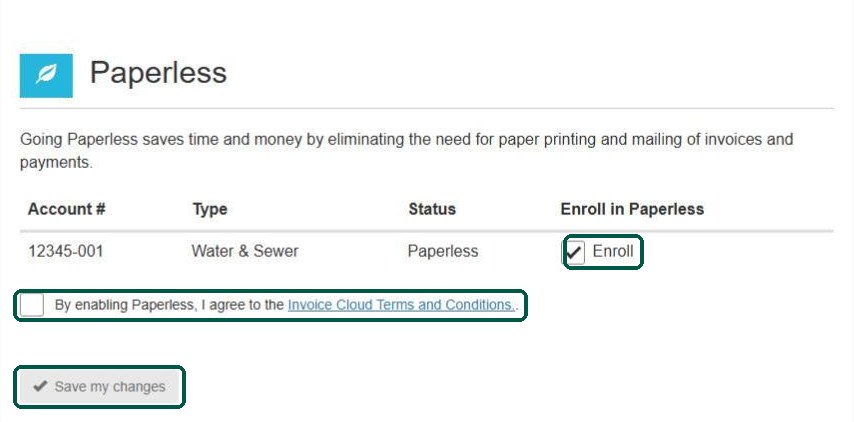
- Go to My Profile > Paperless.
- Check Enroll next to your account.
- Check the box to agree to the terms.
- Click Save my changes.
Pay by textPay from your phone.
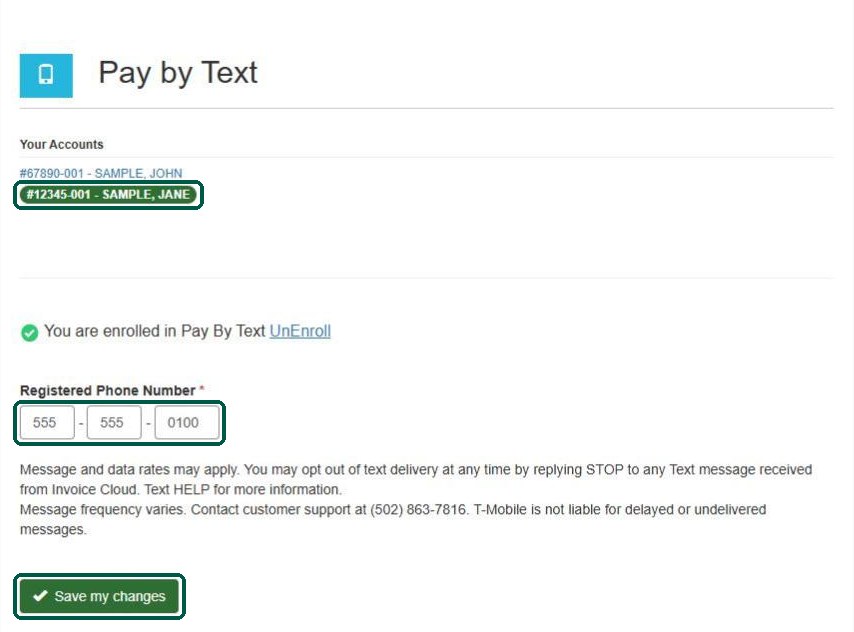
- Go to My Profile > Pay by Text.
- Click your account.
- Check the box, enter your mobile number and click Save my changes.
- Reply OK to the text you receive to finish signing up.
When a bill is due, you will get a text with the amount and due date. Reply OK, then PAY, to pay with your saved default payment method. You need a default payment method saved first. Message and data rates may apply. Reply STOP to opt out.
Manage payment methodsAdd or update a card or bank account.
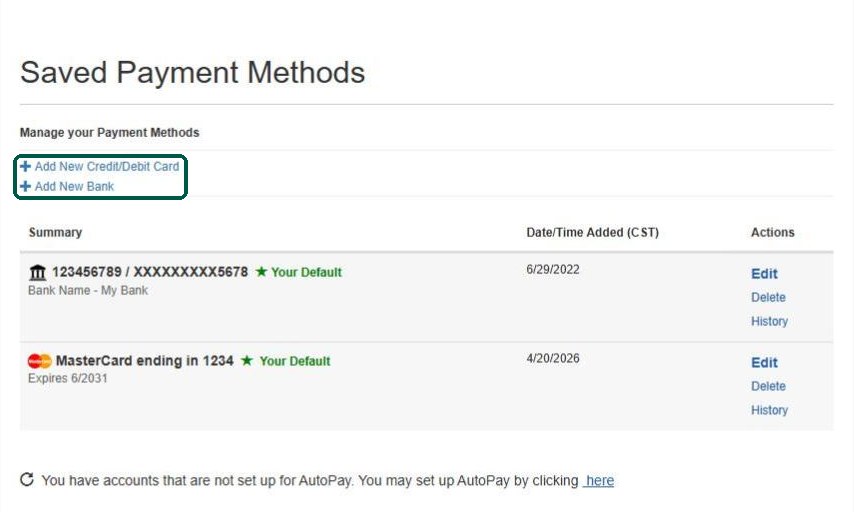
- Go to My Profile > Payment Methods.
- Click Add New Credit/Debit Card or Add New Bank.
- Use Edit to update a card, such as a new expiration date.
On AutoPay? Update your card here when it expires so payments keep going through.
Add another accountManage more than one property.
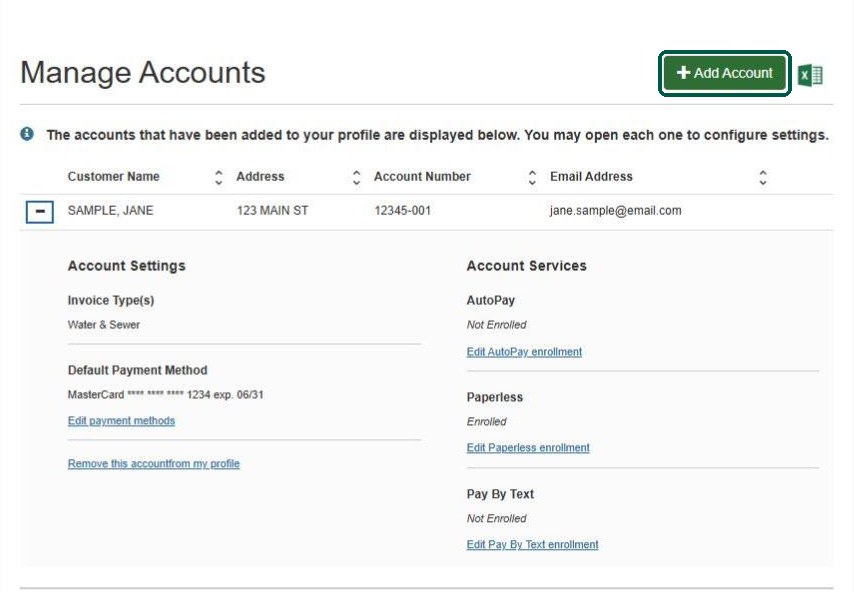
- Go to My Profile > Manage Accounts.
- Click Add Account, then Water & Sewer.
- Search with the account number and service address, check the box next to the account and click Add to My Profile.